Having more than one ChatGPT subscription active can be confusing and costly. If you’re reading this, chances are you’ve noticed duplicate charges on your bank statement or you've accidentally subscribed twice—perhaps once on the web and once via your mobile device. Don’t worry, you’re not alone. Many users encounter this especially because subscriptions through OpenAI’s web platform, Apple’s App Store, and Google Play Store are handled entirely separately.
Before diving into account settings or hastily uninstalling apps, please first search your email inbox for your purchase receipt(s). Your receipt(s) will explicitly show exactly where you subscribed and through which billing channel your payments are processed. This makes the critical difference when it comes to cancellation steps. Also, watch out for tiny, little grey links in email footers—they often provide your subscription management portal link that’s easy to miss.
Why Do I Have Two ChatGPT Subscriptions?
Your ChatGPT subscription billing depends on where you signed up and which app or website you used. Here’s the breakdown:
- Web Subscriptions are charged directly by OpenAI through Stripe, their payment processor. Apple iOS Subscriptions are managed via Apple’s App Store, showing as charges from APPLE.COM/BILL on your statement. Google Android Subscriptions are billed through Google Play, seen as charges from Google on your bank or card statement.
Because these billing channels are separate and independent, having multiple subscriptions is entirely possible and common, like one monthly plan on your web account and another on your iPhone or Android device.
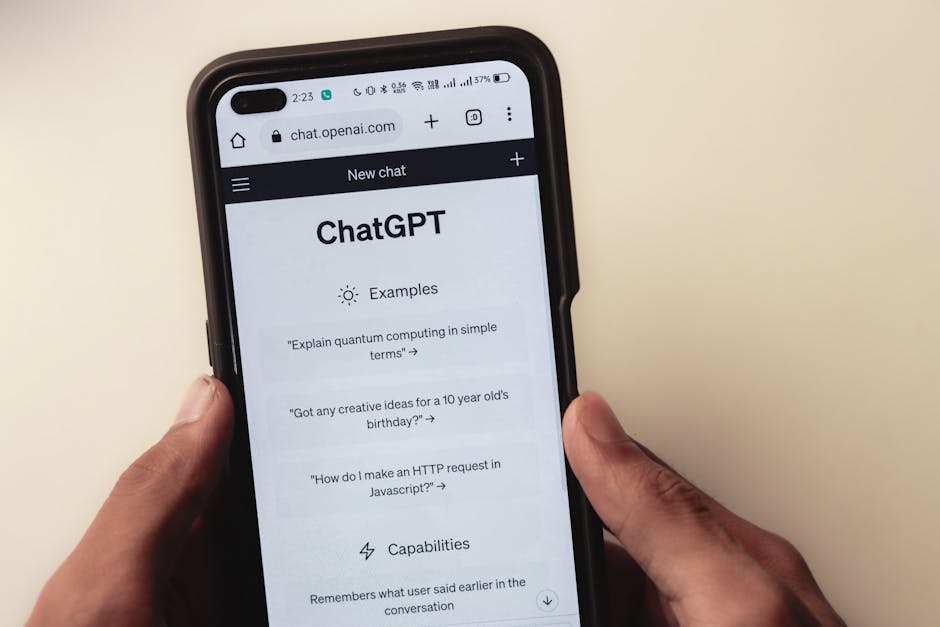
Common Scenarios Leading to Multiple Subscriptions
You first subscribed using your desktop or laptop on chat.openai.com. Later, you installed the ChatGPT mobile app and signed up for Plus there, unaware it’s a separate system. Your billing statement later reflects both charges.Important note: Uninstalling the app does not cancel the subscription on Apple or Google. Similarly, logging out from the web interface won’t affect your mobile subscription.
How to Find Which Billing Channel Is Charging You
The earliest and simplest step: look for your receipts.
Step 1: Search Your Inbox for “ChatGPT Subscription Receipt”
Use search terms like receipt, ChatGPT, OpenAI, or your payment method (e.g., your credit card’s last 4 digits). Receipts always show the payment channel and date, e.g.:
Receipt Source Payment Processor Subscription Platform Example Receipt Email Address Web Subscription Stripe (OpenAI) chat.openai.com [email protected] Apple iOS App Apple App Store iPhone ChatGPT app itunes.com or apple.com Google Play App Google Play Store Android ChatGPT app [email protected]Find each subscription receipt and note the platform—it’s your authority on which billing channel is active.
Step 2: Double-Check Billing Statements
Your credit card or bank statement will reflect who charged you:
- Look for OPENAI or Stripe for web subscriptions. APPLE.COM/BILL means Apple App Store charge. Google Play charges are labeled with “Google” or “Google Play”.
How to Cancel ChatGPT Subscriptions Based on Billing Channel
Canceling depends on exactly where you subscribed. Here’s a clear guide for each case:
1. Cancel Web Subscriptions at Stripe Portal (OPENAI Billing)
The web ChatGPT subscription is managed directly by OpenAI through Stripe. You cannot cancel this via the app stores. Instead:
Find your latest receipt email from OpenAI or Stripe ( [email protected]). Locate the small grey “Manage your subscription” link often near the bottom of the receipt. This little link is crucial! Click the link—this takes you to Stripe’s customer portal. Sign in or verify your email to access your subscription details. Click Cancel Subscription to immediately stop future payments. https://suprmind.ai/hub/chatgpt/how-to-cancel/ Confirm cancellation and you will receive a confirmation email.If you cannot find the link or receipt, try logging into chat.openai.com, clicking your account name > Settings > Manage subscription, which should redirect you to Stripe or provide cancellation options.
2. Cancel Apple iOS ChatGPT Subscription
Apple handles mobile subscriptions independently. Uninstalling the ChatGPT app leaves the subscription active and billable.
On your iPhone or iPad, go to Settings > Your Name > Subscriptions. Find “ChatGPT” in the subscription list. Tap it, then press Cancel Subscription. Confirm cancellation.Alternatively, you can cancel via a Mac or through Apple’s subscription management website by signing in with your Apple ID.
3. Cancel Google Play ChatGPT Subscription
Google Play subscriptions are also fully separate. To cancel:
Open the Google Play Store app on your Android device. Tap your profile icon (top-right corner) > Payments & subscriptions > Subscriptions. Find “ChatGPT” and select it. Tap Cancel subscription and confirm.You can also cancel via a web browser:
- Go to Google Play Subscriptions. Sign in to your Google account. Manage and cancel your ChatGPT subscription from there.
Important Tips and Warnings
- Do not uninstall apps to cancel. Deleting apps won’t stop your subscription charges. Watch out for popup blockers. Sometimes portals for managing subscriptions open in new tabs or popups blocked by default—disable blockers temporarily if the management link doesn’t open. Sign into the correct account. If you have multiple Apple IDs or Google accounts, make sure you’re cancelling the subscription tied to your ChatGPT purchase. Refund considerations. Refund policies vary by platform. If you want a refund, you need to contact the platform (Apple, Google, or OpenAI support) that processed your payment. Confirmation emails. Always wait for a cancellation confirmation email to ensure your subscription is truly cancelled.
Summary Table: How to Cancel ChatGPT Subscriptions Based on Billing Channel
Subscription Source Charge Appears As Cancellation Platform How to Cancel Notes Web ChatGPT OPENAI, Stripe Stripe Customer Portal Find Stripe receipt email Click “Manage Subscription” link Cancel via Stripe portal Cannot cancel via Apple/Google stores Apple iOS ChatGPT APPLE.COM/BILL Apple Subscriptions (iOS settings or website) Go to Settings > Your Name > Subscriptions Find ChatGPT > Cancel Subscription Uninstalling app ≠ cancellation Google Play ChatGPT Google Play Store Google Play Subscriptions Open Play Store app > Profile icon > Subscriptions Select ChatGPT > Cancel Subscription Subscription managed entirely by GoogleFinal Thoughts
Before changing any account settings, start by finding your receipt(s). Knowing your exact billing channel saves you hours of frustration. Remember that the App Store and Google Play run separate billing independently from OpenAI’s web Stripe subscriptions.
Once the billing channels are identified, use the exact cancellation steps for that channel and confirm via email. And please, avoid uninstalling apps as a shortcut — the subscription lives beyond that and the charges will continue.
If you have questions or need help with refunds or special cases, contact the OpenAI Help Center, Apple Support, or Google Play Support directly, depending on your subscription platform.
Happy chatting — with only the subscriptions you want!